Explainer · A first look at computer vision
How a tiny AI learned to read the Hunter × Hunter alphabet
How do you teach a computer to read a secret alphabet it has never seen? Here is the whole journey, step by step and in pictures, from how a computer sees a photo to how it learns from its mistakes. No math or coding needed.
Update, November 25, 2026. The Reader now has two sets of newer models. Fast is the small reader from this article, trained further on photo-like pictures; it also reads digits and some punctuation. Accurate uses bigger models that read real photos much better. Everything below still works the same way.
Update, November 26, 2026. The Reader now also reads numbers drawn as part of the lettering, such as a model number “07” or a “!!” after a title, and the cross “×” between the words of the anime's episode titles. The deep dive has the details.
Update, November 26, 2026. The reader now also runs on a Nintendo DSi, in a smaller version that reads a line through the console's camera: Reading Hunter × Hunter script on a Nintendo DSi.
Your phone can unlock when it sees your face, find every photo of your dog, and read a sign through its camera. All of that is computer vision: teaching computers to understand pictures. This page shows how one small computer-vision project works from start to finish. It is a reader for the made-up alphabet of the anime Hunter × Hunter, and it fits on a phone. As far as we know, it is the first program anywhere that can read this alphabet from pictures.
The big picture
Before the details, here is the whole trip a photo takes. Each stop is a small idea you will meet below. Tap a stop to jump to it.
A secret code for Japanese
The writing on signs and title cards in Hunter × Hunter looks like a whole new alphabet, but it is a code. Japanese has an alphabet of sounds called kana, like ア (a), カ (ka) and ン (n), and every Hunter symbol stands for one of them. There are 47 symbols. A small dot in the corner changes the sound: カ (ka) becomes ガ (ga). A small ring turns ハ (ha) into パ (pa).
What a computer sees
When you look at a photo you see shapes, colours and meaning. A computer sees numbers. Every picture is a grid of tiny squares called pixels, and each pixel is a number. In a black-and-white picture, 0 means black, 255 means white, and everything in between is a shade of gray.
The strip in this picture is 48 pixels tall and 768 wide: 36,864 numbers. The computer's whole job is to turn those numbers into the right letters. Nobody can write rules for that by hand ("if pixel 1,203 is dark and pixel 1,204 is light…"), so instead we let the computer learn the rules from examples.
Finding edges with a tiny stencil
The first trick in computer vision is the filter: a tiny 3×3 stencil of numbers. The computer slides it over the picture. At each spot it multiplies the 9 pixels under the stencil by the 9 numbers in it and adds them up. If the pattern in the picture matches the stencil, the answer is big; if not, it is close to zero. One stencil finds edges that go up and down, another finds edges that go across, another blurs.
Layers: from edges to symbols
One filter only finds simple things like edges. A neural network stacks many layers of them. The first layers find edges, the next layers combine edges into strokes and curves, later layers find parts of symbols, and the last layer decides which symbol it is. The reader here has dozens of layers and about 320,000 numbers inside its filters. Nobody chose those numbers by hand: the computer found them by practising.
A neural network you can poke
Here is a real neural network, small enough to see all of it. It knows only six symbols. On the left are its inputs: a 16 × 16 grid of pixels, 256 numbers. Each circle is a neuron, a tiny calculator. It takes the numbers coming in, multiplies each one by its own weight, adds them all up, and passes the total on if it is more than zero. The lines are the weights. A thick line is a big weight; a blue line pushes the next neuron up and a purple one pushes it down. The six neurons on the right give each symbol a score, and the biggest score wins.
Look at what a neuron in the first column wants. Its weights form a pattern on the grid: blue where it wants ink, purple where it wants none. Nobody drew those patterns. The network found them while it practised, because they helped it tell the symbols apart.
Reading is two jobs
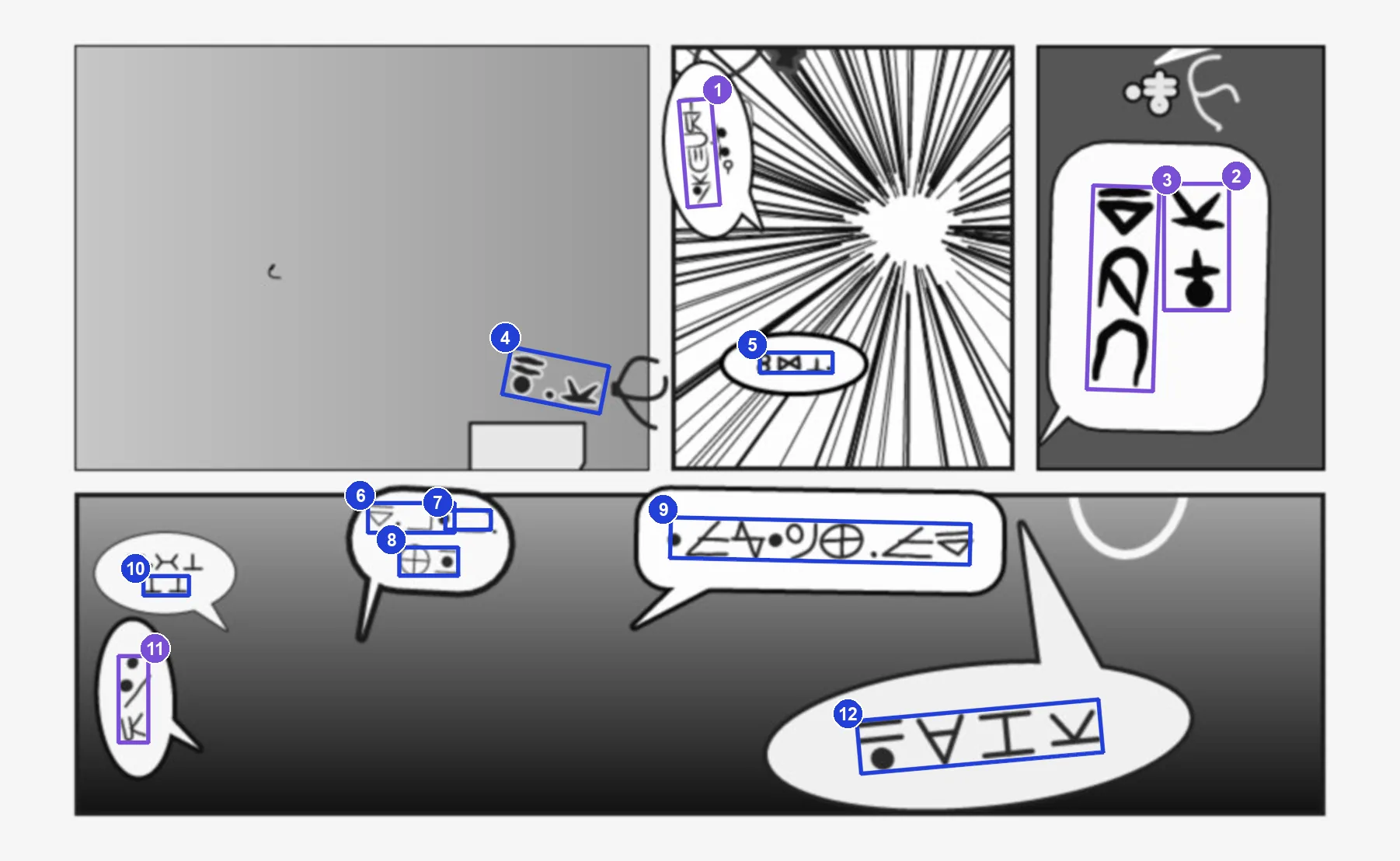
When you read a manga page, you do two things without noticing. First you find the bits of writing: this bubble, that sign. Then you read each one. This app does the same, with one small neural network for each job.
Where the examples come from
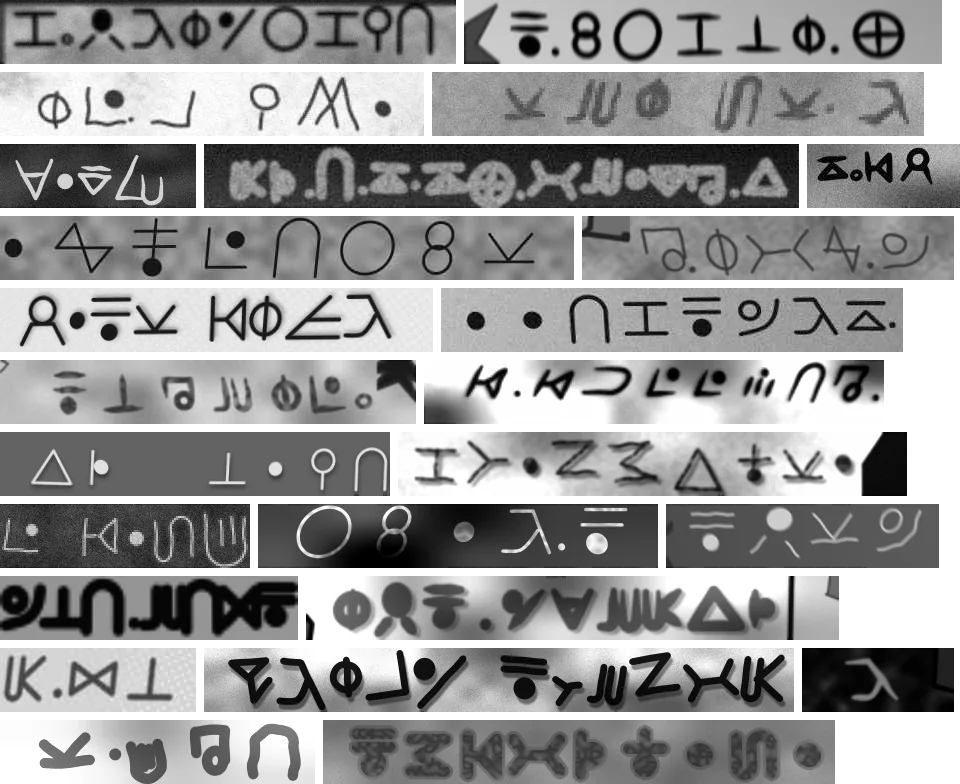
Neural networks learn from examples: lots of pictures, each with the right answer attached. That collection is called a dataset. To learn to read, the reader needs hundreds of thousands of them. But nobody has collected and labelled that many Hunter-script pictures; only a few dozen real ones exist. So every training picture here is made up. A program draws the symbols and then messes them up on purpose, so the network is ready for real-world mess. Because the program drew them, it always knows the right answer.
Repeat that half a million times with random choices, and you have a textbook to learn from. The program went through four versions. Each time the network failed on something real, like a different way of drawing マ, or a cartoon character standing next to the words, the program learned to draw that too.
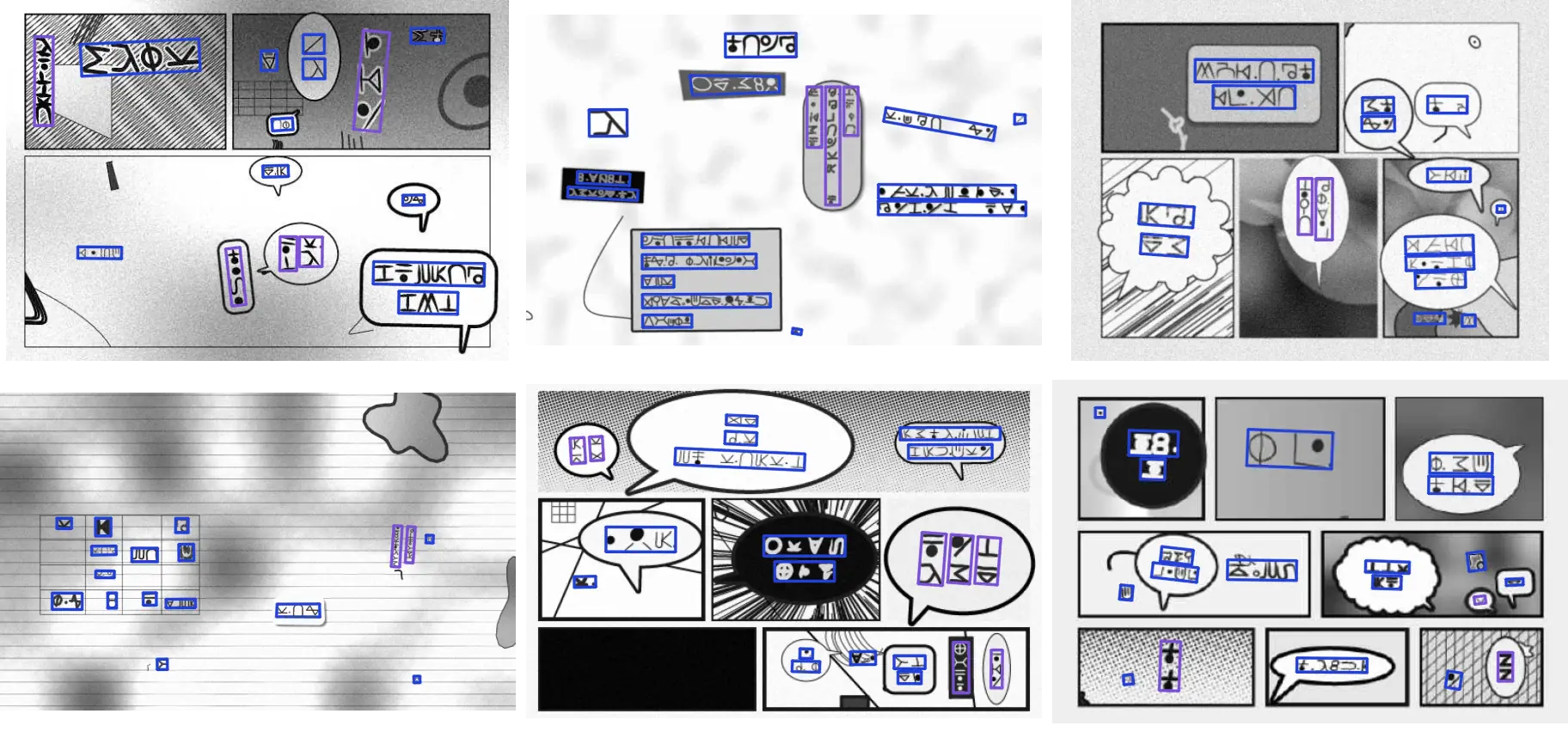
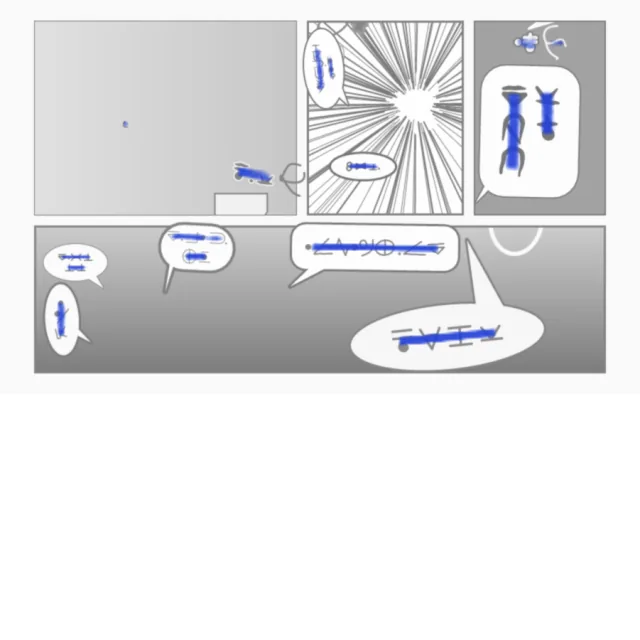
To learn to find lines on a page, a second program draws whole made-up manga pages, with panels, speech bubbles and signs. It also adds plenty of things that are not Hunter script, like English, Japanese and icons, so the line finder learns to ignore them.
How it learns: guess, check, adjust
At the start, the numbers inside the network are random, so its guesses are nonsense. Then it practises, round after round:
- Show it a batch of examples (here, 128 made-up lines at a time).
- Let it guess what each one says.
- Check the guesses against the right answers and measure how wrong they were.
- Adjust every one of its numbers a tiny bit, in the direction that would have made the guesses less wrong.
Each adjustment is tiny, but after thousands of rounds the network gets very good. It is a bit like practising free throws, where every miss tells you how to change your aim.
One important rule: the test lines are kept separate from the practice lines. Otherwise the network could just memorise the answers, like a student who has seen the test in advance, and we would think it was smarter than it is.
How it reads a line
The reader looks at a strip the way you might run your finger along it. It moves along in small steps, 192 of them, one for every 4 pixels, and at each step it says which symbol it sees, or "nothing here".
First the strip goes through the network's layers, the way the six-symbol network above works, only with many more neurons. Each layer turns its input into a stack of new pictures called feature maps, and each map lights up wherever it finds its own pattern. Layer after layer, the pictures get shorter (48 pixels tall, then 24, 12, 6, 3 and 2) but there are more of them (up to 64). In the end, each step along the strip is described by a list of 64 numbers, and the last layer turns that list into a score for each of the 75 possible answers.
Most steps say "nothing here", because they fall between symbols. So the reader tidies up in two moves. First, several steps in a row that saw the same symbol are glued together and count once. Then the "nothing here" steps are thrown away. What's left is the text.
Why have a "nothing here" answer at all? Because some words have the same symbol twice in a row, like ココ (koko). Without a "nothing here" step between them, the two コ would be glued into one.
Notice the guesses. When the reader sees グ (gu), its second choice is ク (ku): the same shape without the dot. At ド (do), its runner-up is ト (to). The network doesn't just pick an answer; it gives every possible answer a confidence, and the app uses those confidences to decide which readings it trusts.
How it finds the lines
The line finder doesn't draw boxes directly. It colours in the middle of every line of writing, like a highlighter that only touches the centre of each line. Then simple geometry grows each highlighted streak back out into a box. Highlighting only the middle keeps lines that sit close together from merging into one blob. A second colouring marks whether each line runs across or down.
Small, fast and private
Most AI models are far too big for a phone's web browser. These three are tiny: about 1 MB together, smaller than a single photo from a phone camera. Two tricks make that possible.
First, the networks are small to begin with. They are based on MobileNet, a design made for phones. Second, every number inside them is stored in 1 byte instead of 4, a bit like rounding prices to whole dollars. Done carefully, the rounding costs almost no accuracy.
All of this runs on your device. The models are downloaded once with the page, and your picture never leaves your phone. The program that runs them is written in a language called Rust and turned into WebAssembly, a format every modern browser can run.
Sideways writing
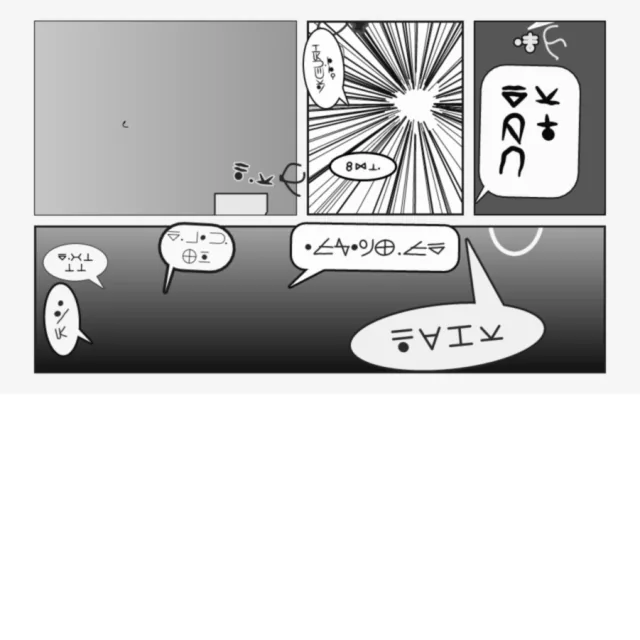
Japanese is often written top to bottom, and manga speech bubbles usually are. The app turns those columns on their side so they become a normal left-to-right strip. Then a second reader, trained only on turned columns, reads them.
Live camera
Point your phone's camera at Hunter script and the reader reads the picture a few times a second. A single look can get one symbol wrong, which makes the label flicker. So each line remembers its last five readings and shows the one it saw most often.
What it can't do yet
- It has only practised on made-up pictures. Real scans and photos can be harder, and there isn't a big set of real examples to test on yet.
- Very small writing gets missed. Tap it in the reader and the line finder takes a closer look.
- Other writing can still slip through. The first version boxed English, Japanese and icons too. The line finder was then retrained on pages full of such writing and learned to ignore it: on test pages that are mostly not Hunter script, false boxes on ordinary text fell from 25 per page to under 1. The app also hides any line it isn't sure about.
- No punctuation, and the small kana (ャ, ッ) come out full size.
Words to know
- Computer vision
- Teaching computers to understand pictures and video.
- Pixel
- One tiny square of a picture, stored as a number (or three numbers for colour).
- Filter
- A small stencil of numbers slid over a picture to find a pattern, like an edge.
- Neural network
- Many layers of filters stacked together, whose numbers are learned instead of written by hand.
- Dataset
- The collection of examples, each with its right answer, that a network learns from.
- Training
- The guess, check, adjust loop that tunes the network's numbers.
- Test set
- Examples kept aside to check the network fairly, never used for practice.
- Confidence
- How sure the network is about each possible answer, from 0% to 100%.
- Model
- A trained network, ready to use. This app has three, about 1 MB together.
Your turn
Everything on this page was made on one home computer, with free tools and a lot of curiosity. You can start exploring computer vision today:
- Try the reader on the example pages, then on a screenshot of your own. Find where it goes wrong, and think about why.
- Invent your own secret alphabet on paper. Then think: how would you make thousands of fake practice pictures of it?
- Train your own image model in a browser. Free tools like Google's Teachable Machine let you teach a model to tell things apart using your webcam, in a few minutes, with no code.
- Learn a little programming. Python is the most common language for AI, and there are free beginner courses everywhere. The ideas on this page (pixels, filters, training) are where every computer vision course starts.
Try it
Open the reader and pick a photo or screenshot, try an example page, or point your camera at Hunter script.